How to Stop IPTV Buffering: A Practical Fix-It Guide
Why live IPTV freezes and how to stop it: diagnosing the cause, wiring the main TV, better Wi-Fi, bandwidth per stream, device care and the player settings that help.
Few things ruin a match faster than the spinning wheel. The striker winds up, the picture freezes, and by the time it comes back the crowd is already celebrating. Buffering is the complaint we hear about most, and it is also the one with the most myths around it.
The reassuring part is that most buffering has an ordinary cause and an ordinary fix. In our experience helping BexyTV customers, the large majority of cases come down to the home network or the streaming device, not to anything exotic. This guide explains what buffering really is, how to work out where yours comes from, and the fixes that make the biggest difference, in the order we would try them ourselves.
What is actually happening when a stream buffers
To fix buffering, it helps to understand what the player is doing behind the scenes.
The buffer is a small reserve of video
Every streaming player keeps a little video in reserve, downloaded a few seconds ahead of what you are watching. While new video arrives faster than the player uses it, everything is smooth. When delivery slows down, the reserve drains. Once it is empty, the player has to stop and wait until it has enough again. That pause is what you see as buffering.
Why live TV is more sensitive than films on demand
On-demand services can download several minutes of a film in advance, so a short slowdown never reaches the screen. Live TV cannot do that: the next few seconds of a live match have not been broadcast yet. A live stream therefore runs on a much smaller reserve, and even a brief dip in your connection can show up as a freeze. That is why a connection that plays films perfectly can still struggle with live sport.
Three things your connection needs
People tend to think only about speed, but three properties matter:
- Bandwidth, or how much data the connection can carry each second.
- Stability, or whether that bandwidth stays steady or keeps rising and falling.
- Packet loss, or how often small pieces of data go missing and have to be sent again.
A fast connection with frequent wobbles, which is very common on Wi-Fi, often buffers more than a slower one that never changes. Much of what follows is about making your connection steadier rather than faster.
Find where the problem lives
Spend a few minutes observing before changing anything. Four questions narrow things down quickly.
One channel, or all of them?
If a single channel stutters while others play smoothly, the problem is probably that particular stream. Note the channel name and the time and tell support; they can check it at their end. If every channel buffers, the cause is much more likely to be on your side.
One device, or every device?
Try the same channel on a second device, ideally one connected differently, such as a phone next to the router. If the phone plays perfectly while the TV stick struggles, focus on the stick and its connection. If both struggle, look at the router or the internet line itself.
Certain times, or all the time?
Buffering that appears only in the evening points to congestion: either your own home is busy online, or your internet provider's network is under peak load. Buffering at every hour points more towards Wi-Fi or device problems.
Live only, or on demand too?
If films and series from the on-demand library play smoothly but live channels stutter, your connection is borderline: good enough for content that can be buffered generously, not quite steady enough for live streams. Stability fixes, especially a cable, usually solve this.
Fix 1: Use a cable for the main TV
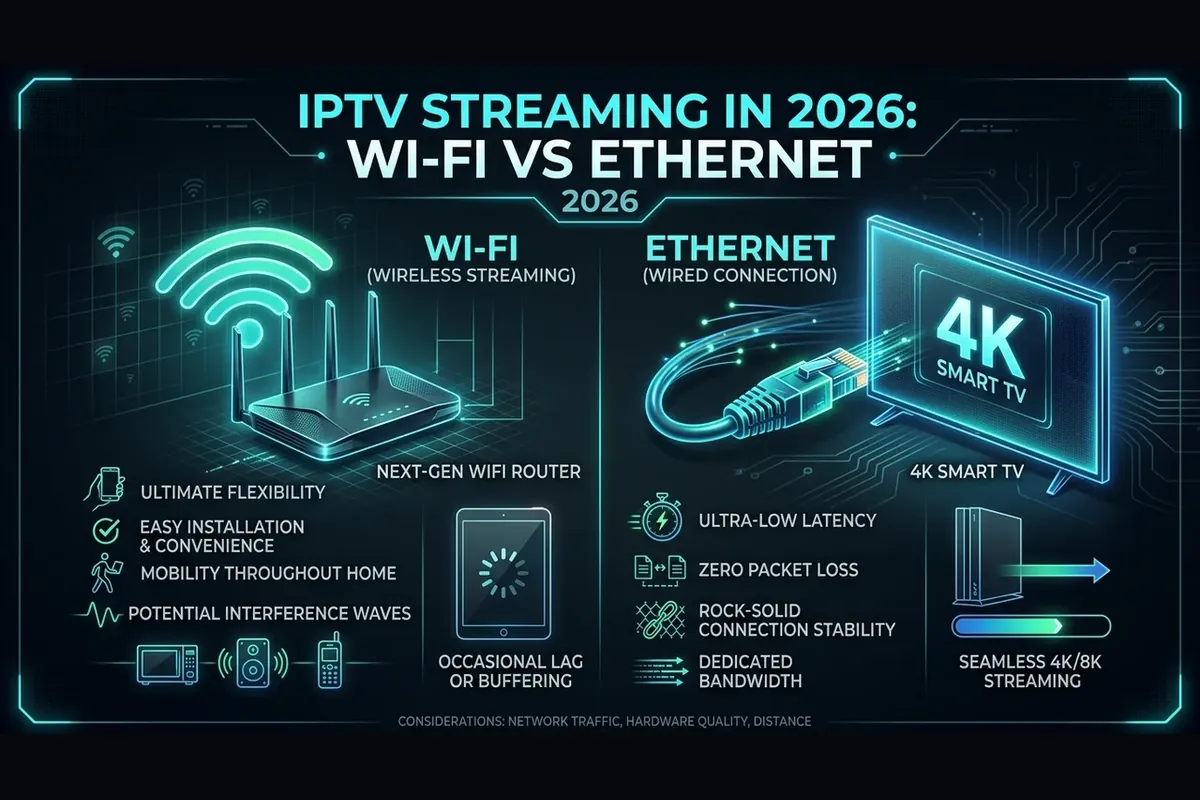
If we could give only one piece of advice, it would be this. Connecting your main streaming device with an Ethernet cable removes the single biggest source of instability in most homes: wireless interference.
Why wired beats wireless
Wi-Fi shares the airwaves with your neighbours' networks, cordless phones, baby monitors, microwaves and every other wireless gadget in the house. Walls, floors, mirrors and even fish tanks weaken the signal. A cable has none of these problems. It delivers a steady connection with almost no packet loss, which is exactly what live TV needs.
What if my device has no Ethernet port?
Many Smart TVs, Android TV boxes and the NVIDIA Shield have an Ethernet port built in. Fire TV Sticks and some other dongles do not, but an inexpensive Ethernet adapter that plugs into the stick's power port gives them one. If running a cable across the room is impractical, powerline adapters, which send the network signal through your home's electrical wiring, are often a good compromise.
Check the cable itself
Old or damaged cables can limit speed. Use a Cat 5e cable or better, make sure the plugs click firmly into place, and avoid sharp bends or cables trapped under furniture.
Fix 2: Make Wi-Fi work harder
If a cable is not possible, you can still make Wi-Fi much more reliable.
Use the 5 GHz band
Most modern routers broadcast two networks: 2.4 GHz and 5 GHz. The 2.4 GHz band reaches further but is crowded and slower. The 5 GHz band is faster and much less congested, though its range is shorter. For a streaming device in the same room as the router or one room away, 5 GHz is almost always better. Some routers combine both bands under one name; if yours does and you have problems, check whether it lets you separate them.
Move the router, not just the TV
Routers work best when they are high up, in the open and roughly central in the home. A router on the floor behind a TV cabinet, inside a cupboard or next to a thick wall loses a lot of its range. Even moving it a metre or two to a shelf can transform the signal in the living room.
Mesh systems for larger homes
In a large house or one with thick walls, a mesh Wi-Fi system with several units can cover dead spots that a single router never reaches. Place one unit near the TV and connect the streaming device to it, ideally by cable if the unit has a port.
Reduce interference
Keep the router away from microwaves, cordless phone bases and large metal objects. If you live in an apartment building with dozens of networks nearby, your router's settings may let you choose a less crowded channel. Many routers do this automatically, but restarting the router can prompt it to pick a better one.
Fix 3: Make sure you have enough bandwidth
Stability comes first, but you also need enough raw capacity for everything you stream at once.
How much each stream needs
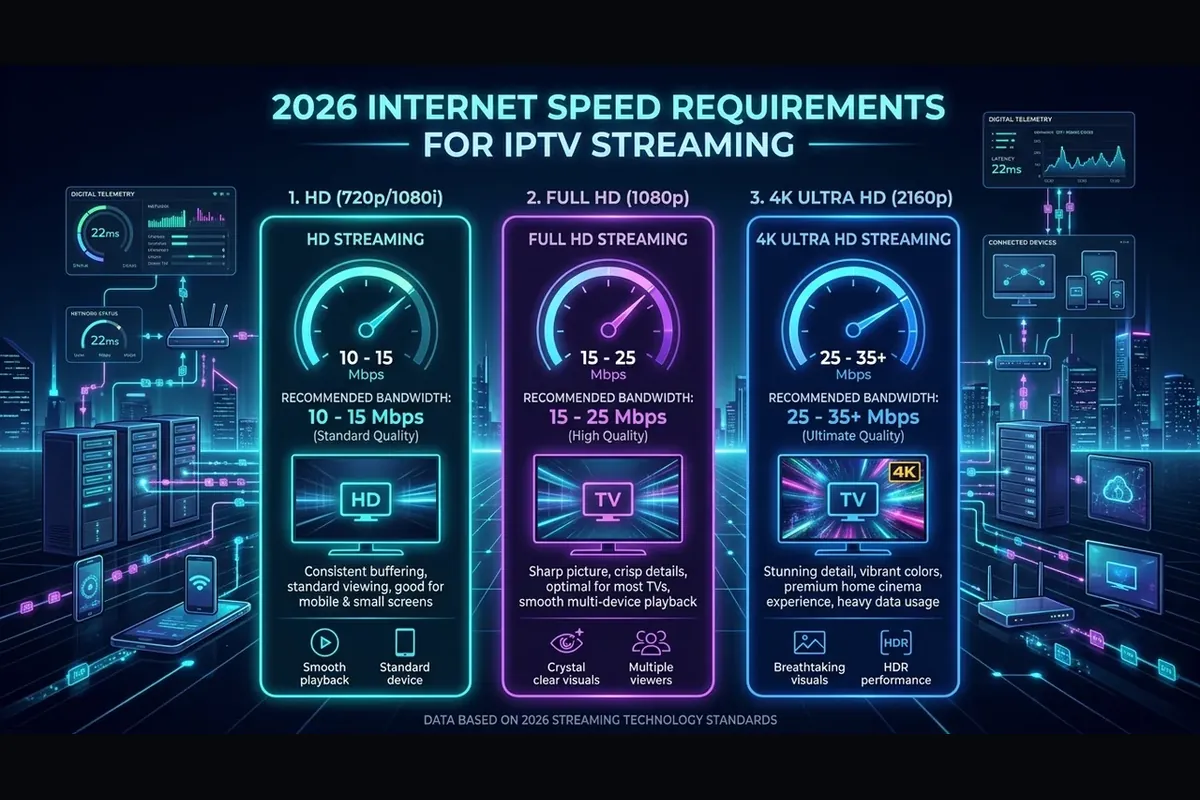
As a working guide, allow around 15 to 20 Mbps for each Full HD stream and 25 to 30 Mbps or more for each 4K stream. If two people watch at the same time, add the figures together. Then leave room for everything else in the house: video calls, game downloads, phone updates and other streaming apps.
Test at the right place and time
Run a speed test on the streaming device itself, or on a phone held right next to it, during the hours you usually watch. A test next to the router at midday will flatter your connection. If evening speeds are much lower than daytime speeds, congestion is likely, and the fixes in the next section will help.
When the line itself is too slow
If your connection is consistently below what your viewing needs, there are only a few options: watch fewer streams at once, choose lower quality on the less important screens, or ask your internet provider about a faster plan. Our guide to choosing an IPTV plan shows how to match your screen count to your speed.
Fix 4: Tame the rest of the household
Your streaming device is not alone on the network. Everything else competes for the same connection.
Find the bandwidth hogs
Large game downloads, cloud photo backups, system updates and other video services can each use a big slice of your connection. If buffering starts at the same time every evening, check whether a console or computer is downloading something in the background.
Schedule big downloads overnight
Most consoles, computers and phones let you schedule updates for the middle of the night. Moving these out of prime time frees up capacity when you actually want to watch.
Use your router's priority settings
Many routers have a feature called Quality of Service (QoS) or device priority. It lets you tell the router to favour the streaming device over others. Setting your main TV device as high priority can make a noticeable difference in a busy household.
Fix 5: Look after the streaming device
Even with a perfect connection, a tired device can stutter.
Restart regularly
Streaming sticks and Smart TVs rarely switch off fully; they usually go into standby. Over days and weeks, memory fills up and small glitches accumulate. A proper restart once a week, or whenever things start to feel sluggish, clears this out. On a Fire TV, go to Settings, then My Fire TV, then Restart. On Android TV and Google TV, use Settings, then System, then Restart.
Clear the player's cache
The player app stores temporary data, such as channel logos and guide information. If that cache becomes very large or corrupted, the app can slow down. Clearing the cache in the device's app settings often helps. Clearing data instead of cache resets the app completely, so you will need to sign in again.
Free up storage
Devices with almost no free storage struggle to buffer video smoothly. Uninstall apps you no longer use. Older, low-memory sticks are particularly sensitive to this.
Keep the software up to date
Update both the device's system software and the player app. Updates often include performance and compatibility fixes.
Consider the hardware's age
Older streaming sticks with limited memory and slower processors can struggle with high-bitrate 4K streams, even on a perfect connection. If an old device buffers while a newer one plays the same channel smoothly, it may simply be time for an upgrade.
Fix 6: Adjust the player settings
Player settings are worth checking once the network and device are in good shape. Change one setting at a time so you know which one helped.
Hardware or software decoder
Most IPTV players let you choose between a hardware decoder (often labelled HW), which uses the device's dedicated video chip, and a software decoder (SW), which uses the main processor. Hardware decoding is usually smoother, but some channels play better in software mode on certain devices. If one channel stutters or shows a black screen while others are fine, try switching.
Buffer size
Some players let you increase the buffer size. A larger buffer gives the player more reserve to ride out short dips, at the cost of slightly slower channel changes. It can be a useful setting on a connection that is generally good but occasionally wobbles.
Stream format
Players sometimes offer a choice of stream format, such as HLS or TS. If buffering persists on otherwise healthy channels, support may suggest trying the alternative.
Picture quality
If a channel is available in several qualities, choose Full HD rather than 4K on a smaller screen or a busier connection. The difference on a 32-inch bedroom TV is small; the difference in stability can be large.
Fix 7: Respect your screen limit
This one is not a network problem at all, but it looks exactly like one.
Every plan allows a set number of screens to play at the same time. If one more device starts playing, one of the streams will stop. A phone left playing in a pocket or a bedroom TV that went to standby with the player still running can use a screen without anyone noticing. If streams stop unexpectedly, especially when several people are home, close the player on every device and start again. If it happens often, a plan with more screens may be the real fix. The pricing page lists one, two and three-screen options.
What about VPNs?
A VPN adds an extra step between your device and the service. Depending on the VPN server and how busy it is, that can reduce speed and add delay. A VPN is not a general cure for buffering. If you use one for other reasons and see buffering, try watching without it to see whether it makes a difference.
A step-by-step checklist
Work through this list in order. Most people find their fix within the first five steps.
- Check whether the problem affects one channel or all of them.
- Restart the streaming device and the router.
- Connect the main TV device with an Ethernet cable, or move it to 5 GHz Wi-Fi.
- Run a speed test on the device at the time you usually watch.
- Pause large downloads and updates on other devices.
- Clear the player's cache and free up storage on the device.
- Update the device and the player app.
- Try switching between hardware and software decoding.
- Increase the player's buffer size if it has that option.
- Choose Full HD instead of 4K on smaller screens or busy connections.
- Make sure you are not using more screens than your plan allows.
- Send support your notes if the problem continues.
When you contact support about buffering, include your device model, the player app, whether you use Wi-Fi or a cable, a recent speed test result, and which channels and times are affected. With that information, the team can usually pinpoint the cause in one reply.
Frequently asked questions
Why does IPTV buffer when other streaming apps are fine?
Other apps usually play on-demand video, which can be downloaded well in advance. Live TV runs on a much smaller reserve, so short dips in your connection that other apps hide become visible. Making the connection steadier, especially with a cable, normally solves it.
What speed do I need for smooth IPTV?
Plan for about 15 to 20 Mbps per Full HD stream and 25 to 30 Mbps or more per 4K stream. Add the figures together for each screen watching at the same time, and leave room for other internet use in the home.
Is Wi-Fi good enough?
It can be, particularly on the 5 GHz band with the device close to the router. For the main TV, a cable is still more reliable because it removes wireless interference completely.
Why is it worse in the evening?
Evenings are when your household and your whole neighbourhood are online, so both your home network and your internet provider's network are at their busiest. Cables, router priority settings and scheduling downloads overnight all help.
Can too many devices cause buffering?
Yes. More devices online means less bandwidth for streaming, and using more simultaneous screens than your plan allows will cause streams to stop. Check both.
Should I buy a new streaming device?
Only after trying the network fixes. If an old device buffers while a newer one plays the same channel smoothly on the same connection, then an upgrade is likely to help.
Smooth streaming starts at home
Buffering feels like a mystery when you are staring at a frozen screen, but it rarely is. Work out where the problem lives, steady the connection with a cable or better Wi-Fi, make sure you have enough bandwidth for every screen, keep the device tidy, and only then fine-tune the player. If you get to the end of this list and the problem is still there, gather your notes and contact BexyTV support. A clear description is the fastest route to a fix.
Still buffering after these steps? Send BexyTV support your device, connection type and a speed test result.
Get help from support